Google Opal’s new Agent feature enhances no-code AI app creation, allowing users to set goals while the platform autonomously selects models for execution.
What's New with Google Opal: A Shift Toward Autonomous AI
The last time I opened Google Opal, I was taken aback by a significant change in its user interface. The Generate step, which I had become quite familiar with for selecting models like Gemini, Imagen, or Veo, now featured an intriguing new option called "Agent." No announcement heralded this addition; it simply appeared, suggesting a more profound transformation in how users can interact with the platform. This minor interface tweak belies a much more substantial evolution in the tool’s functionality, a change that serves as the focal point of this article. If you're yet to start using Opal, I highly recommend checking out my previous piece on Building AI Automations with Google Opal. It lays the groundwork, covering Opal’s Editor and its original three-step process. This article is built on that foundation, exploring the updates and offering a fresh build utilizing the new features.Understanding Opal: Google’s No-Code Tool
For those who may be unfamiliar, Opal is Google Labs' intuitive no-code platform designed to convert plain language inputs into functional AI mini-apps, powered by an internal engine known as Breadboard, developed by engineer Dimitri Glazkov. You can articulate your requirements in simple terms, and Opal translates those into a visual workflow, allowing you to share the final app without needing any coding expertise—no deployment systems or server management involved. The earlier article revamped these mechanics, so we won’t repeat them; instead, let’s focus on what's fresh.Key Updates to Opal: Moving Beyond Manual Models
In essence, Opal has transitioned from being a straightforward connector of fixed models to a platform that can autonomously make certain choices during the building process. Since its latest update in February 2026, the introduction of what Google designates as an "agent step" marks a significant departure from the original framework of User Input, Generate, and Output. Furthermore, there's a notable shift in Opal's positioning. It now has a dedicated presence on Google for Developers, as opposed to being merely another experimental tool within Google Labs. This reassignment often signals that the product has garnered a commitment for ongoing support and development, and the recent flurry of feature releases supports this narrative.The Agent Step: Rethinking How We Build
Now, let’s break down the core difference. Under the old Generate step, users were required to select a specific model—be it Gemini for text processing, Imagen for imagery, or another fixed option—and provide corresponding prompts. This setup produced a rigid output structure. Opting for the new **Agent** allows a more flexible, goal-oriented approach. Instead of specifying a single model, you define a broader objective, and the system autonomously determines which models or tools best achieve that goal during execution. For instance, the agent might employ Gemini's reasoning to devise a strategy, utilize a web search for the most recent data, or activate an image-generating tool when visual content is necessary. A report on this update revealed that Google frames this as a shift from manual processes to more automated, agent-driven workflows requiring minimal setup from the user. To illustrate, consider the example of creating a storybook generator. Previously, you'd have to predefine the number of pages and write prompts for each one since the original workflow executed precisely as planned. But with the agent step, you can simply provide a goal, like “create a five-page children’s story about a lost kite.” The agent will dynamically adapt, collecting necessary details, suggesting narrative arcs, and refining the story as it goes, rather than sticking to a pre-written path.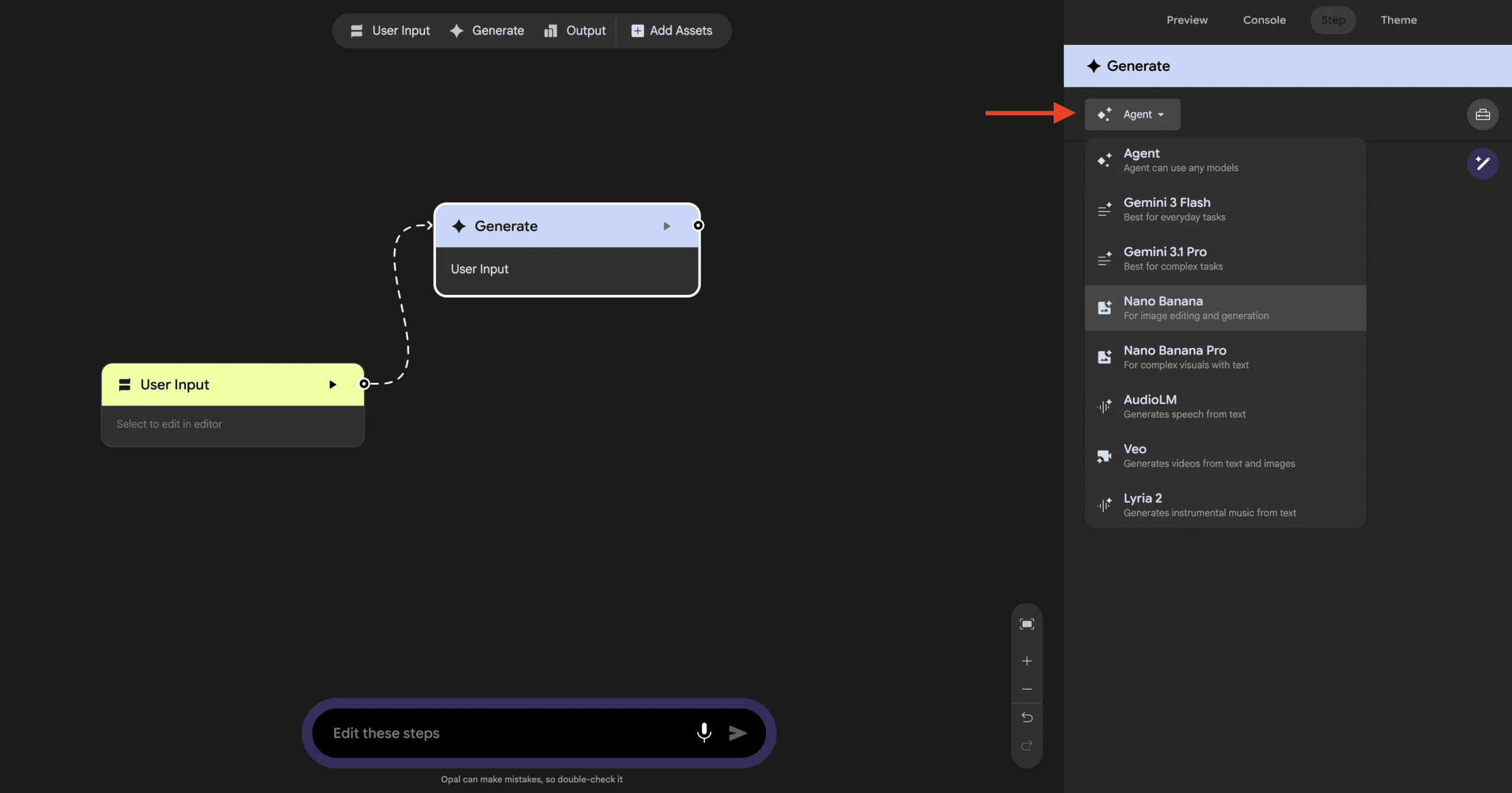
A Look at the New Tools Accompanying the Agent Step
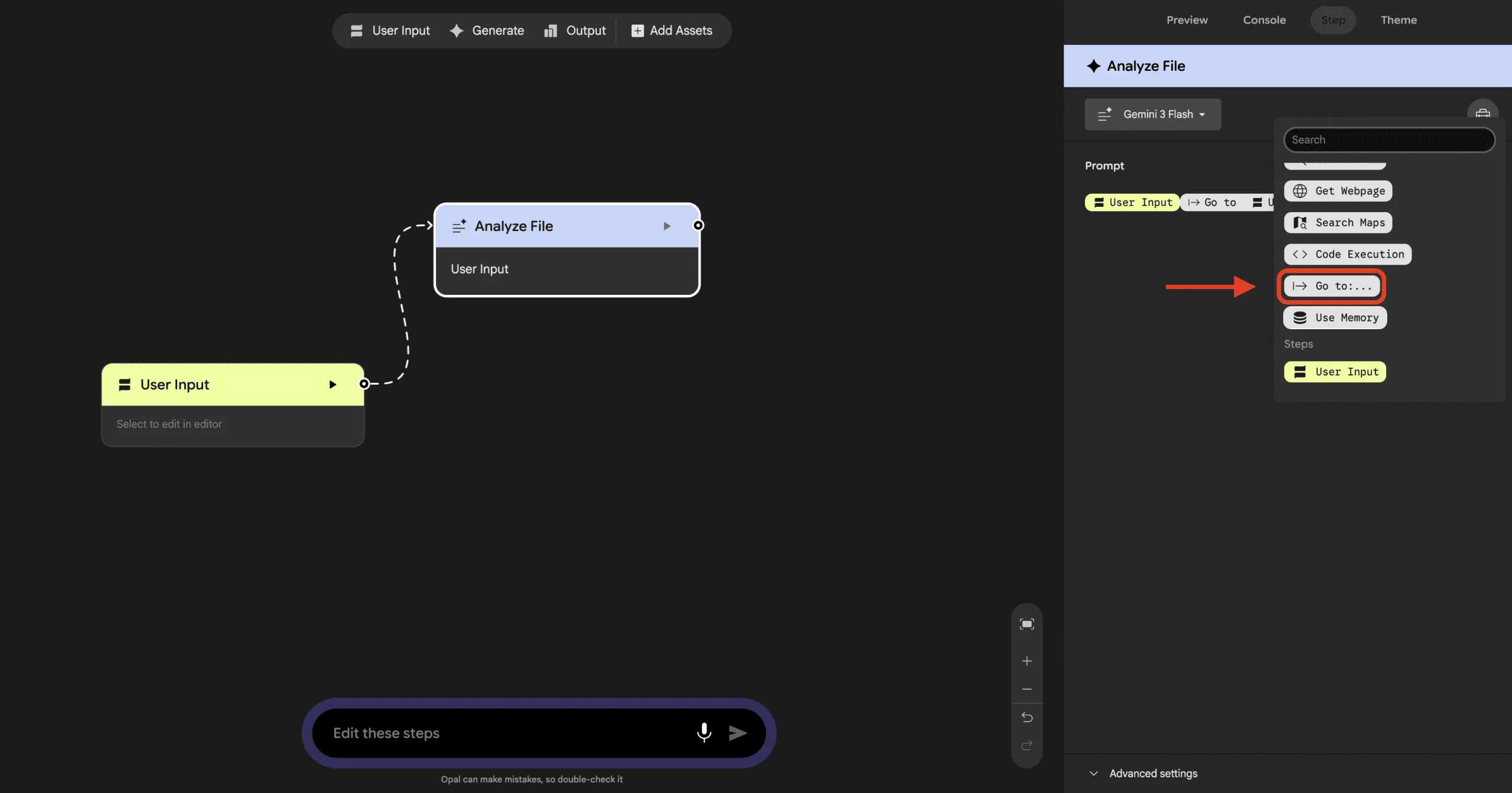
With the advent of the agent step comes three complementary tools that enhance its capabilities. Each of these warrants individual consideration, as they significantly broaden Opal’s potential. 1. **Memory** allows the Opal app to retain information across user interactions. Instead of resetting with every new session, it can recall previous details, such as a user's name or preferences, making for a more personalized experience.
Expanding the Model Offerings
The options available in the Generate step have diversified significantly since my first article, which focused primarily on Gemini, Imagen, and Veo models. The current model selection includes:| Model | Function |
|---|---|
| Agent | Dynamically selects models based on stated goals |
| Gemini Flash | Quick text and reasoning tasks |
| Gemini Pro | Complex reasoning and multi-step tasks |
| Nano Banana | Image generation and editing |
| Nano Banana Pro | Visuals with accurate text inclusion |
| AudioLM | Text-to-speech generation |
| Veo | Image and text-to-video creation |
| Lyria 2 | Instrumental music creation |
Creating a New Opal Application: An Interview Prep Coach
For the purpose of this article, I’ll be demonstrating the building of an Opal application that presents a clear need for the new features: an interview preparation coach. This app will accept a job description and a resume, inquire about missing information, perform web searches if necessary, and generate a tailored prep document for the user. It’ll also remember each user's desired role and experience level, so a follow-up visit doesn’t require starting over. It's essential to clarify why this particular application stands out compared to the previous examples. A keyword generator could function within a fixed construct: input, generation, output, repeat. However, an interview prep coach operates more fluidly, relying on real-time input to determine whether additional questions need to be asked or whether external information requires a search. These are precisely the situations that the new Memory, Dynamic Routing, and Interactive Chat functionalities are designed to tackle.Getting Started with Opal
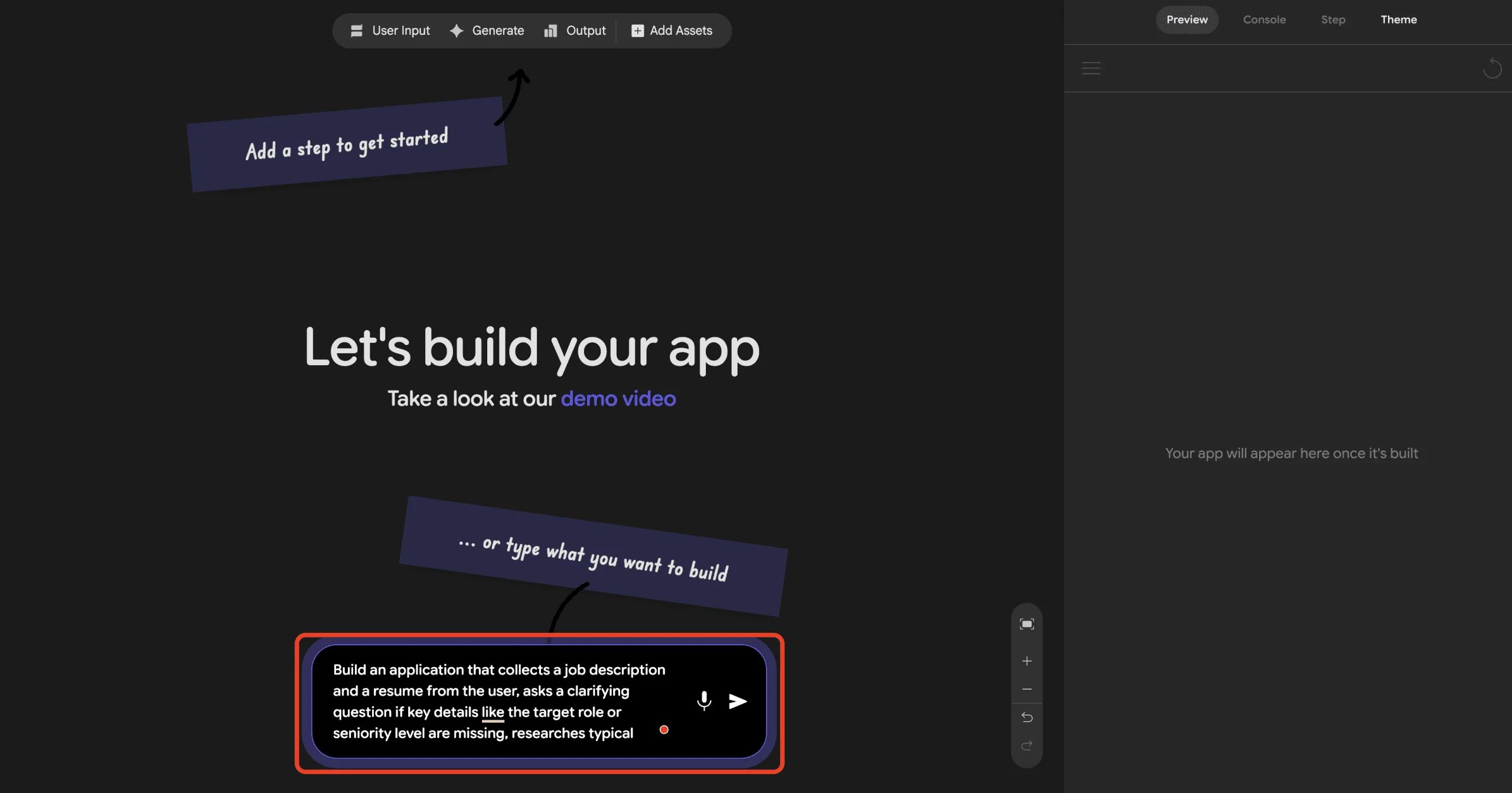
Start by clicking **Create New** in the same way you'd initiate any Opal project. Here, you'll need to provide a succinct but detailed prompt to outline the app's concept:Build an application that collects a job description and resume from the user, asks follow-up questions if key details like target role or seniority are unclear, researches typical interview questions for that specific role, and generates a personalized interview prep document. Remember the user's target role and experience level for future sessions.
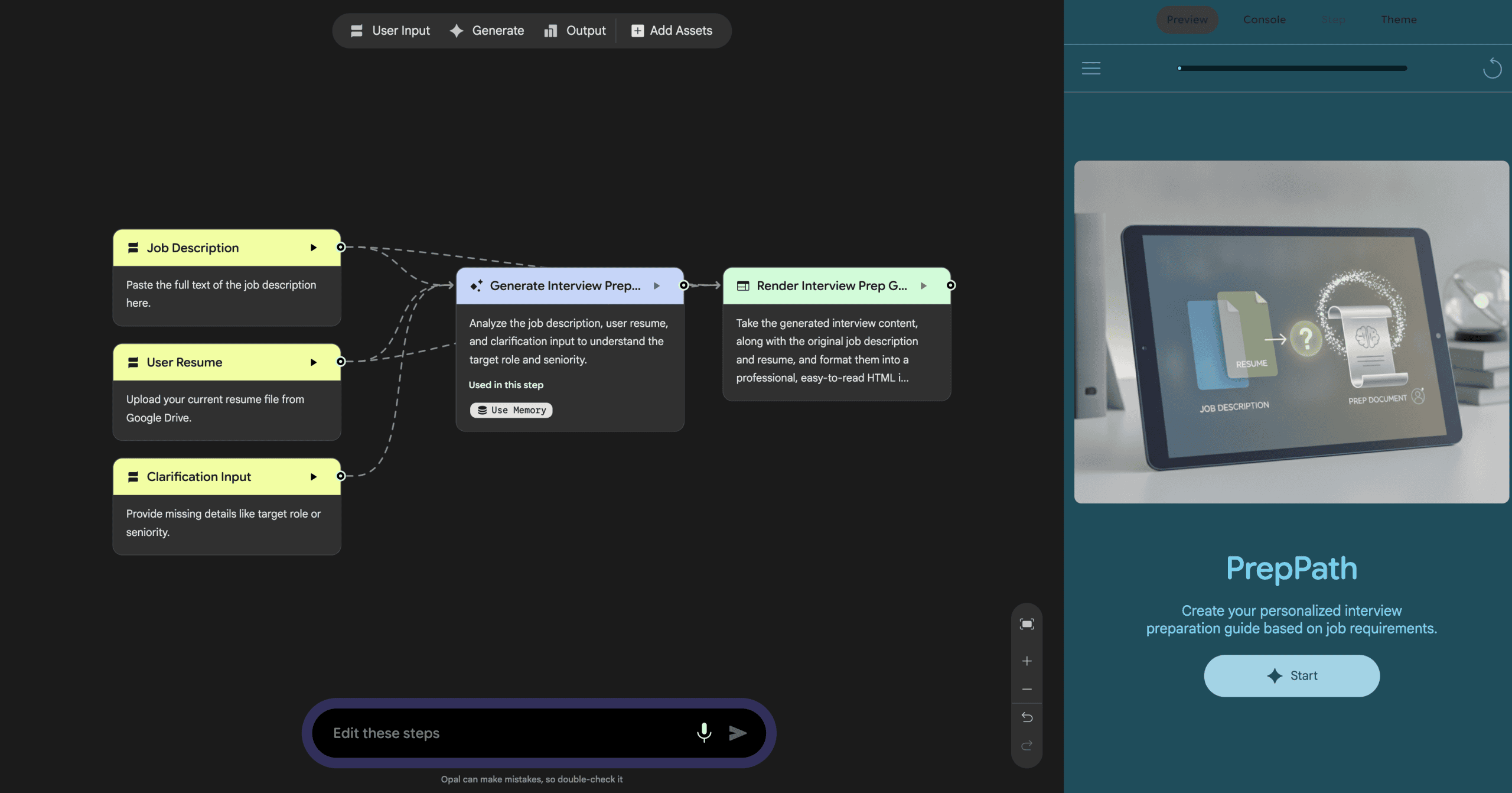
Configuring User Input Steps
Open the User Input node and set it up to gather two key pieces of information: the job description in text form and the resume as a file upload. Under the **Advanced** settings for this step, adjust the input type to allow file uploads, ensuring that the interface presents users with a straightforward upload option, rather than a simple text box.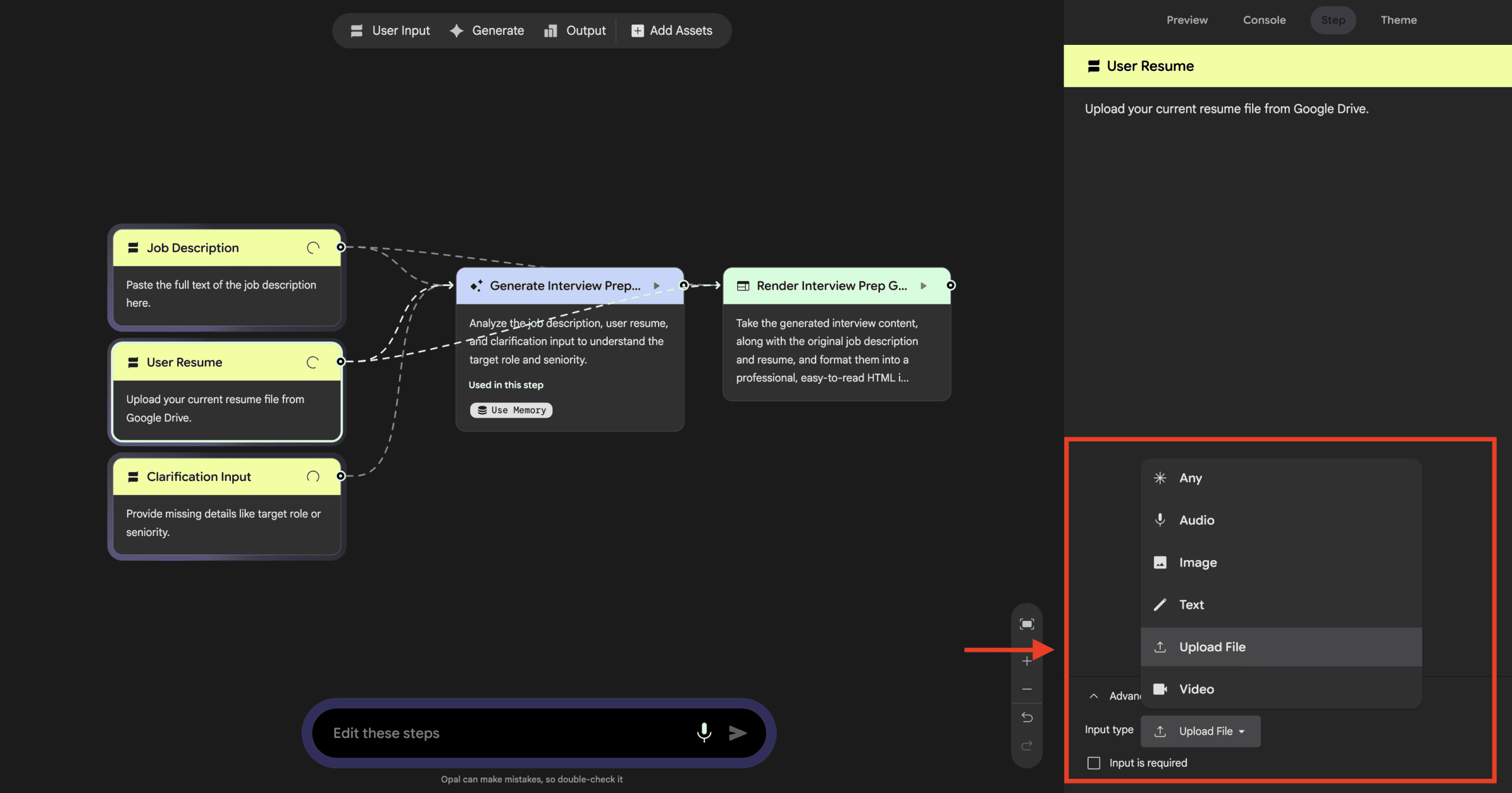
Setting Up the Agent Generation Step
This is where the magic unfolds. Select the corresponding node, choose **Agent** from the model dropdown, and write a goal-oriented prompt rather than a rigid command:In the prompt field, type **@** to access the tools menu, enabling you to attach **Memory** for retaining user specifics and **Interactive Chat** for asking questions when details are lacking. Notably, you won’t need to manually incorporate a web search tool; the agent can autonomously access that resource if it determines it’s necessary when the app runs. This functionality exemplifies the dynamic routing capability—no need for prewired pathways.Using the job description and resume provided, identify the target role, company, and seniority level. If any of these are unclear or missing, ask the user directly before proceeding. Research common interview questions for this position if you don't already have solid context, and generate a preparatory document with likely questions, recommended talking points, and a couple of inquiries for the candidate to present to the interviewer.
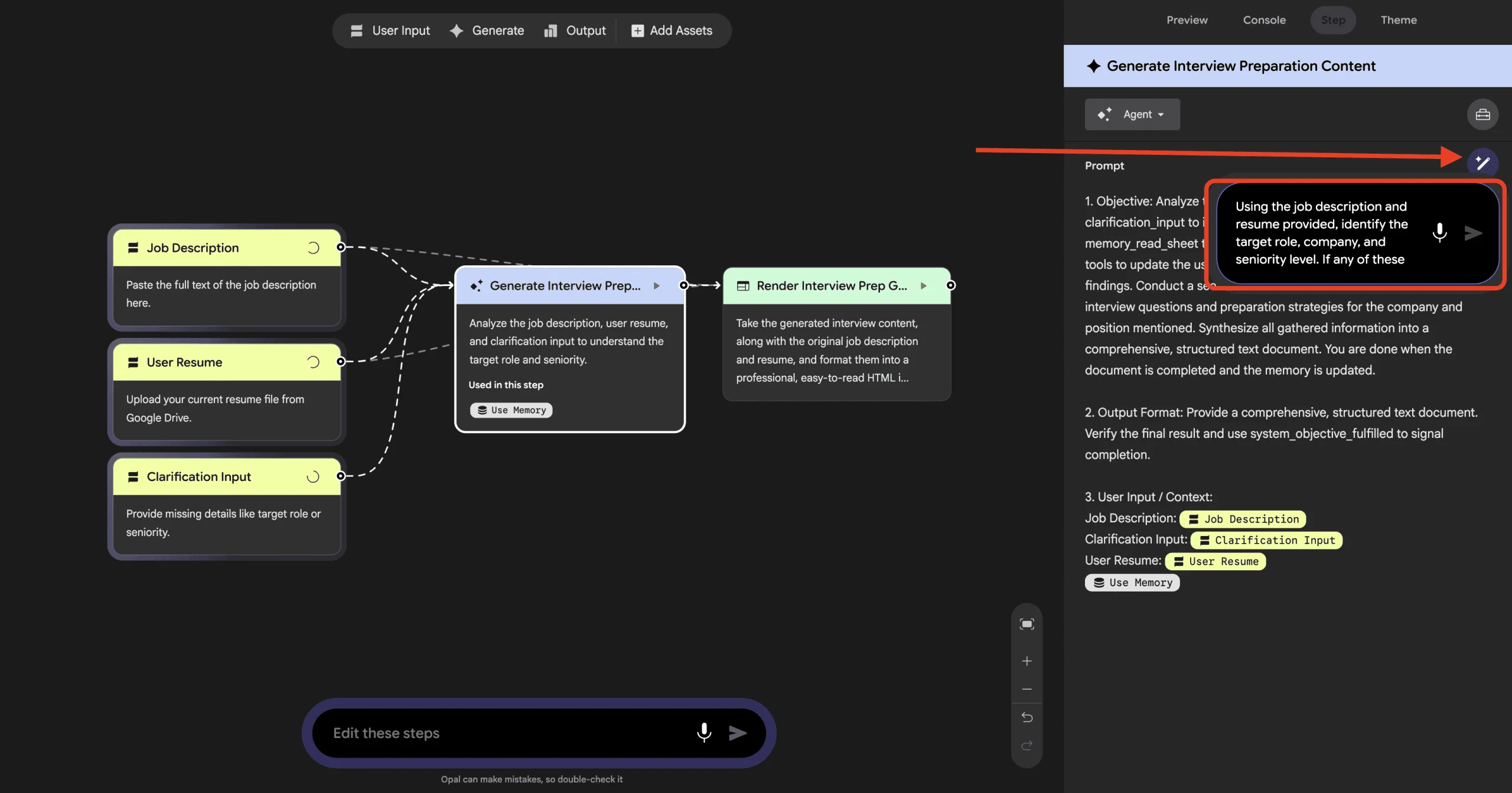
Dynamic Web Search Integration
Unlike the previous fixed-model approach, a web search step doesn’t persist in the canvas; it appears only when the agent decides it’s warranted during execution. This marks a clear departure from traditional methods: while workflows may visually remain consistent, their actual functionality can yield vastly different outputs based on user inputs.Establishing Output Steps
Finally, create an Output step connecting to the Agent’s results. Set the output type to Google Doc, as most users will want to save and revisit a prep document rather than merely viewing it once on a webpage. Ensure the output title is clear, perhaps referencing the role and company derived in earlier steps, so that users can easily identify multiple documents.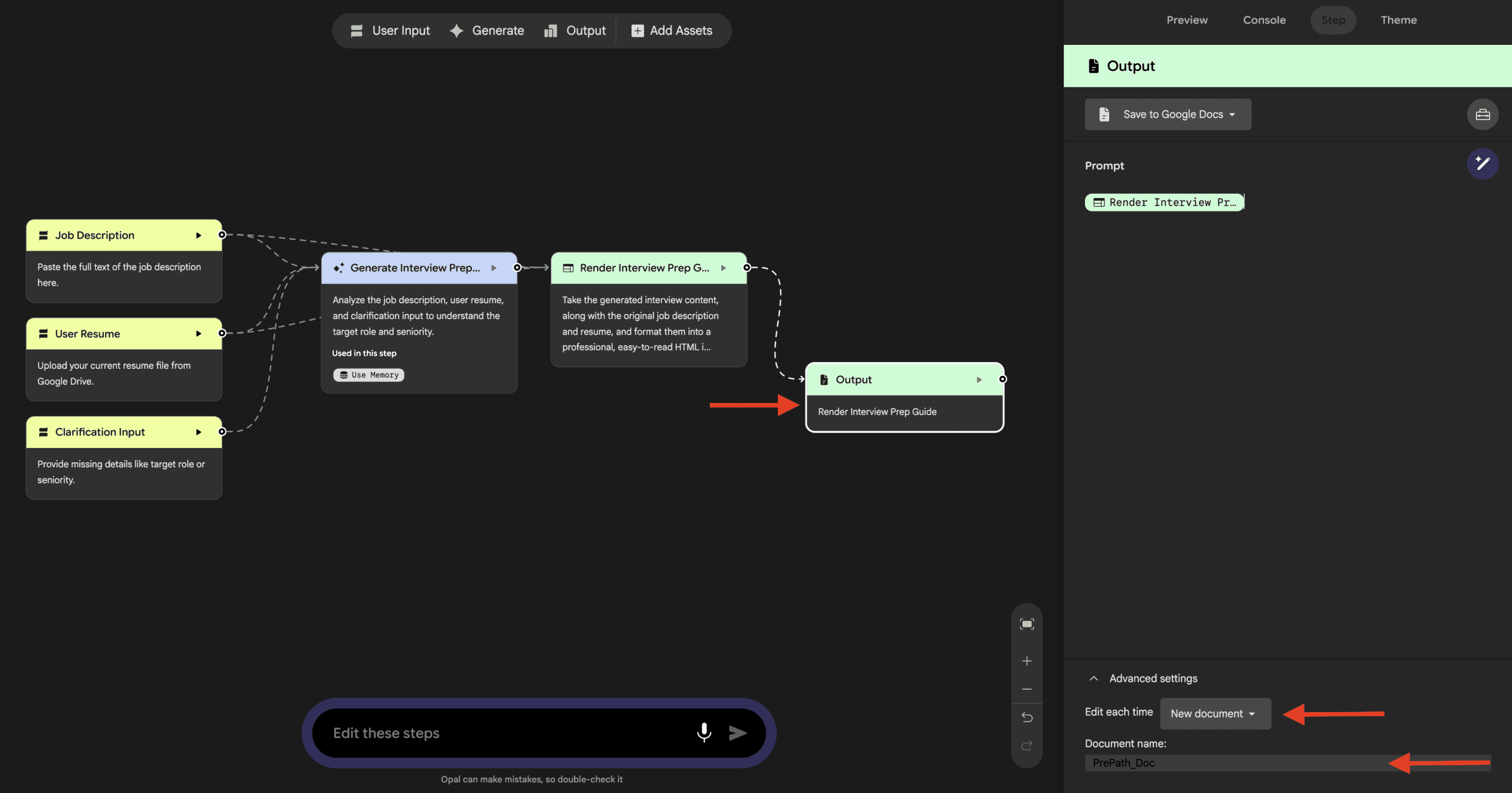
Testing the Application
Switch to **App** view and run your application using a real example—consider a pasted job description for a mid-level product manager position and an uploaded resume. This time, be more attentive than you might have been with a fixed-path app; the Console will reveal not just what each step accomplished, but also which tools or models the agent selected and the reasoning behind those choices.
Sharing and Publishing
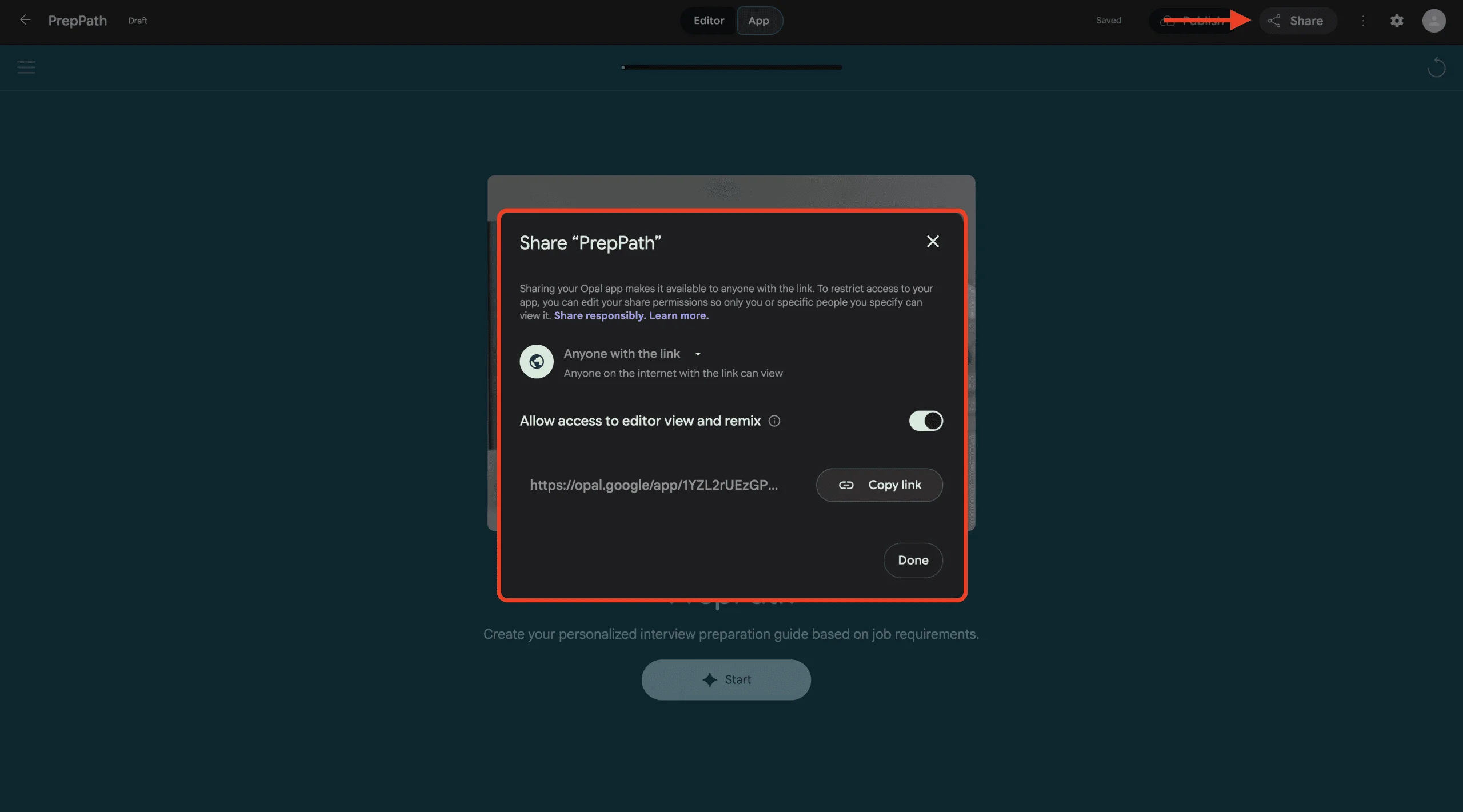
After fine-tuning your app, sharing it is straightforward: you click on Share app, flip the toggle to make it publicly accessible, and voilà — a URL is generated that anyone can use to access the app. If you prefer a more restricted approach, you have the option to limit access to select individuals. There's been no change to this process in light of the latest agent step update, so you won't need a refresher on how to do it.
Key Considerations Before Building on This
Being candid about Opal's current state is vital. Even though it now appears on a developer site, it's still in the experimental phase, and there’s no straightforward method to convert an Opal prototype into a fully operational application. Should you aim to launch a robust product based on what you’ve built, expect to start from scratch using the Gemini API instead, as the existing documentation suggests. Furthermore, Google hasn't released any guidelines concerning usage quotas or rate limits, leaving users in the dark on how the platform might hold up under heavy traffic. Likewise, enterprise-ready features like single sign-on (SSO) or audit logging remain absent from the documented capabilities at this time.
That said, this shouldn’t deter you from experimenting with Opal. Since its debut, the pace of meaningful updates has been remarkable: new agent-driven workflows, additional tools, and broader availability have all emerged in just about seven months. That's a rapid development pace by any standard, especially for an experimental product.
Final Thoughts
The apps we discussed initially followed a scripted path, maintaining the same course throughout. In contrast, the app you’ve built now takes initiative, pausing to clarify uncertainties rather than making assumptions, and it retains enough contextual awareness to recognize users on their return visits. This represents a significant shift in the concept of "no-code app" within this environment; it's not just an enhancement, but a fundamental evolution worth exploring before future updates reshape the landscape.
Shittu Olumide is a software engineer and technical writer passionate about leveraging cutting-edge technologies to craft compelling narratives, with a keen eye for detail and a knack for simplifying complex concepts. You can also find Shittu on Twitter.



Discussion
Sign in to join the discussion.