Unlock the full multitasking potential of the Galaxy Z Fold 8 with tips to efficiently manage and organize multiple apps on its expansive display.
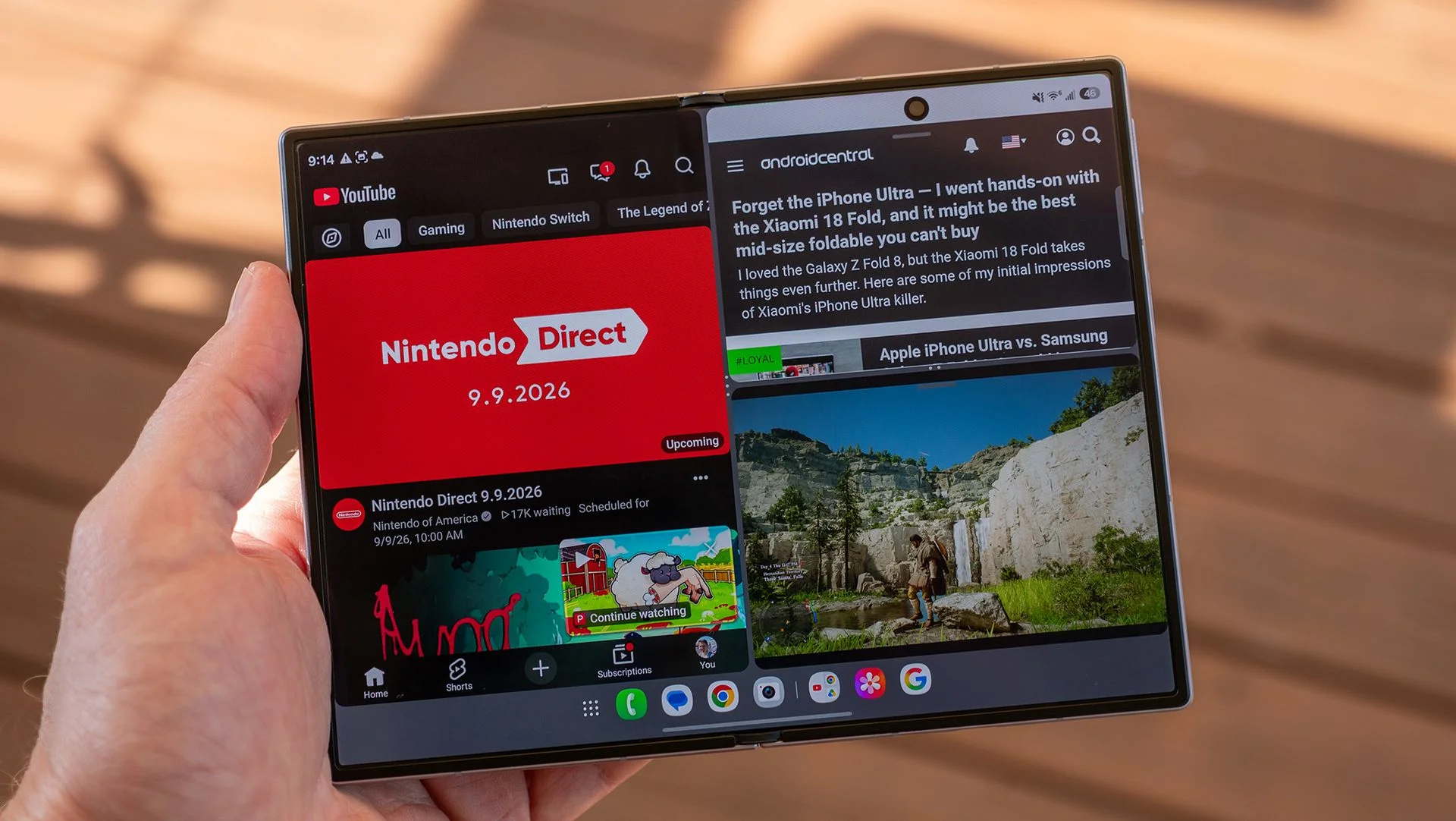
Unlocking the Multitasking Potential
The Galaxy Z Fold 8 is more than just a foldable smartphone; it’s a powerful multitasking device that reshapes how we operate while on the go. With a spacious display that folds conveniently into your pocket, it’s tailored for individuals who seek to merge productivity with portability. Samsung’s latest iteration enhances this experience significantly, introducing advanced multitasking capabilities that streamline the management of multiple applications concurrently. The integration of these features reflects broader trends in mobile technology where user efficiency and flexibility dominate design philosophies.
The Power of the Taskbar
One of the standout features of the Galaxy Z Fold 8 is the taskbar that appears when you unfold the device. Initially, this feature may seem unobtrusive, but with a quick adjustment in settings, it can remain on-screen, elevating your multitasking experience to a new level. To keep the taskbar visible:
- Open your Galaxy Z Fold 8 and access the Settings app.
- Scroll to Display and tap Taskbar.
- Select Taskbar style and choose Stay on screen.
Once pinned, the taskbar becomes a launching pad for multiple apps, allowing you to drag icons directly onto the display. This functionality cuts down the time spent navigating back to your home screen. Instead, you can focus on getting work done, eliminating unnecessary actions that disrupt your workflow. The expectation for instant access to applications is growing among users, and this addition reflects that demand.
Multiple Apps at a Glance
Samsung has introduced two new multitasking features to enhance how you run multiple apps simultaneously: a three-way split screen and a customizable layout system. To initiate a three-app interface:
- Unfold your device for a larger view.
- Launch any app of your choice.
- Hold an app icon from the taskbar and drag it to the desired side of the screen. Visual indicators will assist in placement.
- Select another app from the taskbar and drop it into a different section.
- To add a third app, repeat the drag-and-drop method.
This process allows for flexible layouts, where app sizes and arrangements can be adjusted according to your preferences. It’s not just about having multiple apps visible; it’s about how you want to work. For instance, if you're focused on a particular task, you might choose to enlarge one app while keeping the others accessible but minimized—this balance is often missed with traditional smartphones, where multitasking can feel clunky.
Dynamic Layout Adjustments
This device empowers you not only in terms of the number of apps you can run but also in how those apps interact. If you desire larger views for intensive tasks, resizing is as simple as adjusting the separation bars. You can prioritize one app to occupy the majority of the screen—a method particularly suitable for tasks requiring more focus. If a different stack of apps suits your workflow better, simply tap and drag the app handles to rearrange their sizes and positions. (And this is the part most people overlook; the intuitive interface allows for a level of customization typical of desktop environments.)
For those wanting a more desktop-like experience, dragging an app icon to the center of the screen activates a hover feature, allowing for the possibility of four or more apps running at once. This feature emulates traditional desktop operating systems, creating a multi-window experience that might redefine your expectations of mobile multitasking.
Enhancing Productivity
The multitasking capabilities of the Galaxy Z Fold 8 do more than just streamline workflows; they enhance overall productivity, especially for professionals who need quick access to various applications. Whether you're juggling emails, web browsing, document editing, or joining video calls while keeping notes open, the Z Fold 8 delivers an experience that could very well influence how work is done on the move.
Switching layouts is designed for ease, allowing users to modify their experience as necessary. You can access additional layout options simply by tapping on the handle, enabling a fluid approach to rearranging app positions or swapping content locations. This adaptability is vital, as the effectiveness of a device often hinges on how well it aligns with the user’s workflow. What this means for you is that you can craft an environment that fits your working style—a key factor for maximizing efficiency.
Implications for the Future of Mobile Work
As the line between personal devices and professional tools continues to blur, the Galaxy Z Fold 8 serves as a beacon for what's possible in mobile work environments. The ability to customize and organize apps on a foldable device could redefine not just individual productivity but also how teams collaborate while on the go. Imagine the implications for remote work where access to multiple resources is essential.
The evolution of devices like the Z Fold 8 emphasizes the growing importance of multitasking in mobile settings. If you're working in this space, you should pay attention; this device might inspire future designs that prioritize user flexibility even more. The impact is significant but will depend on how quickly other manufacturers adapt these features into their devices.
Choose Your Layout
As you explore the various multitasking settings, you’ll likely stumble upon your preferred arrangement—the one that feels just right for your workflow. From the convenience of adjustable app sizes to effectively organizing multiple programs, the Galaxy Z Fold 8 empowers users to maximize productivity without the limitations of a traditional desktop setup. Share your favorite layouts and multitasking configurations in the comments, and discover how this uniquely designed device can enhance your digital workflow.

Discussion
Sign in to join the discussion.